Attachments work in a similar manner to images. However, instead of being limited
to image type files. You can attach emails, adobe documents, word documents, and
any other type format document to a customer folder.
Click on the Attachments tab in the customer folder.
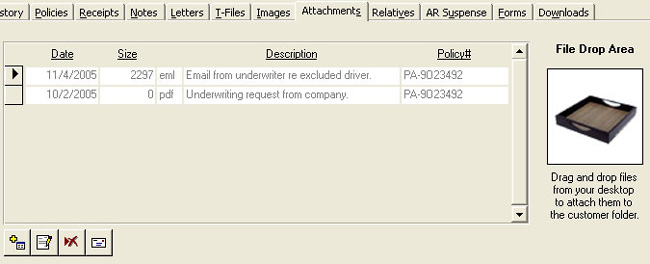
You can add attachments two different ways. First you can actually drag the file
and drop it in the Drop Area to the right. While Agency Advantage is open, click
on the file and drag it to the Drop Area. Then the Attachments Data Card will appear.
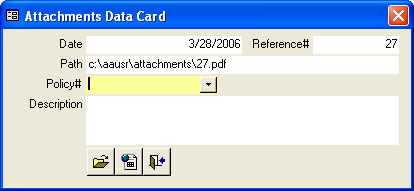
Select the policy and enter the description. When you are finished, click the
Exit button. The file will now be saved in Agency Advantage for future reference.
The other way to enter an attachment is to click on the Add button. The same
Attachments Data Card will appear, except this time you need to click on the Choose
File button and browse for your file.

After you select the file and enter in the information, click the Exit button.
You will now see your attachment in the list.
When you want to open an attachment, simply double-click on the record selector
to the left.
Also see:
Document Imaging
Batch Scan
Batch File
Selecting a scanner
Written by: Tina Stewart
Back